
- Home
- Screenshots
Fotosizer Standard Edition features
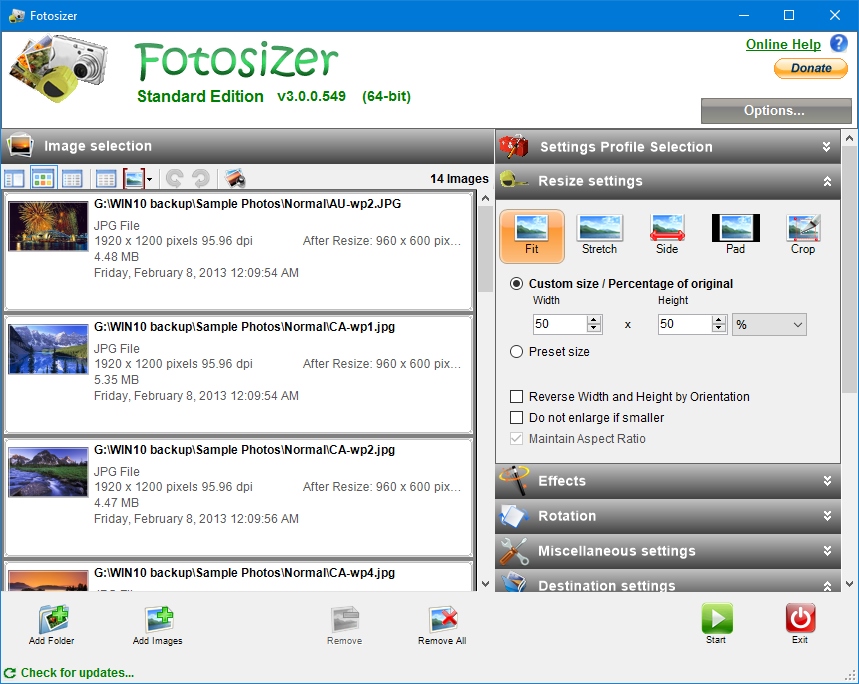
Add Images and choose settings
Images can be added using the "Add Folder" and "Add Image" buttons. You have the choice of resizing to a specific width and height in pixels, or by a percentage of the each image width and height.
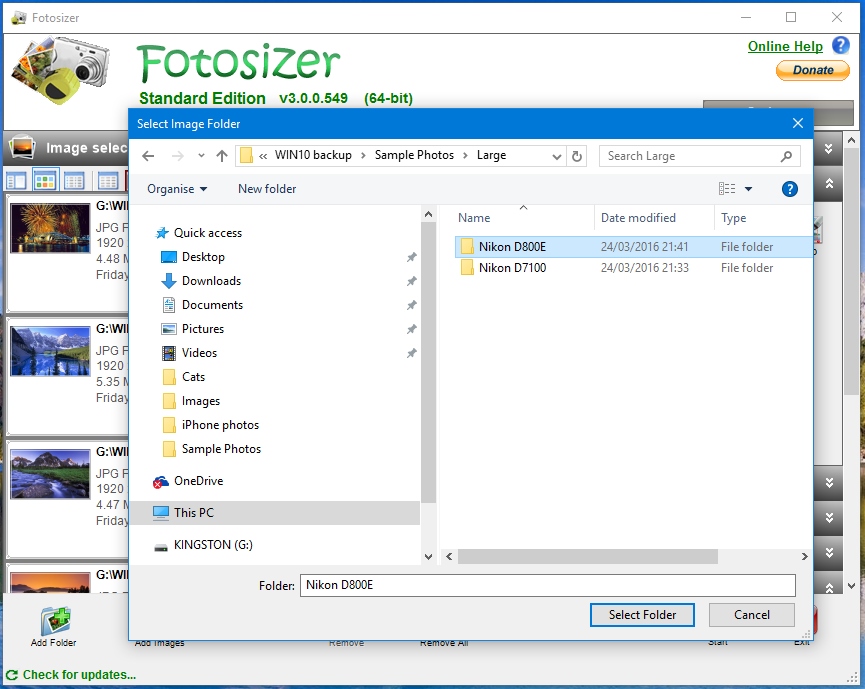
Add from a folder of images
Using the "Include Sub-folders" option checked, Fotosizer will look inside sub folders of the folder you choose and get any images that are supported from those folders.
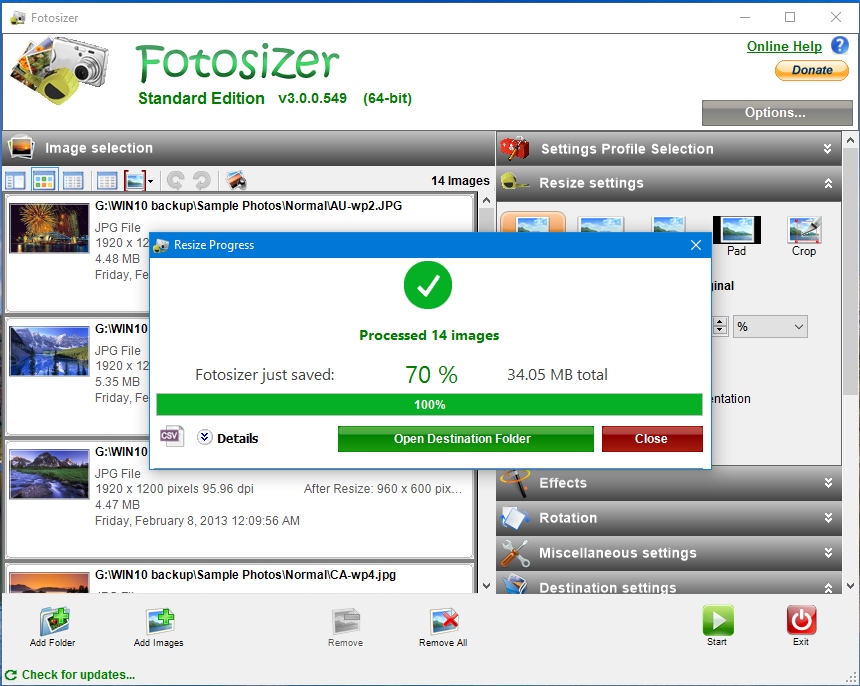
Resizing
When you have all of your images selected and setting changed, resizing can begin by clicking the "Start" button.

Effects
Choose optional effects to apply to the images from: Black & White, Negative or Sepia.

Rotation
Choose optional rotation to apply to the images.
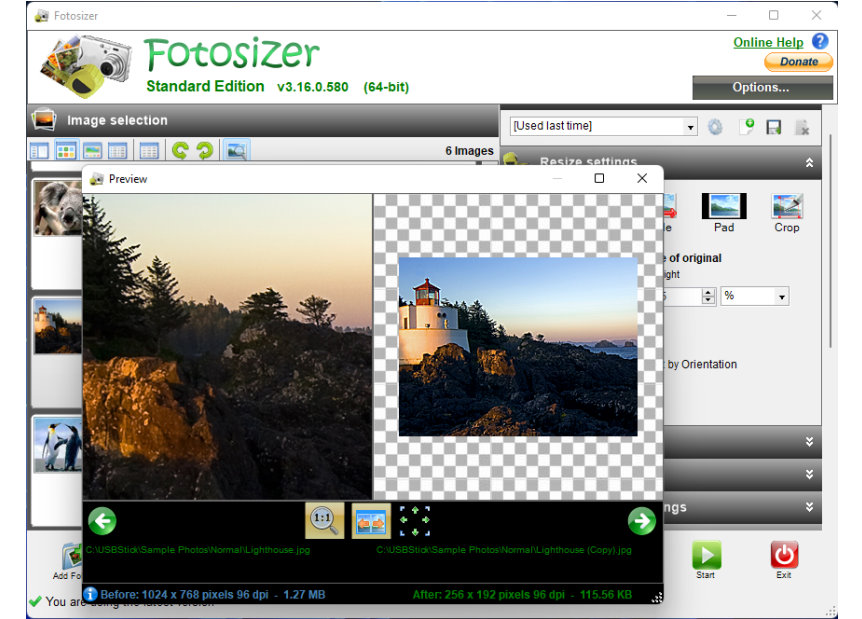
Preview changes
Preview how your photos will look in real time as you are changing settings.
Fotosizer Professional Edition features
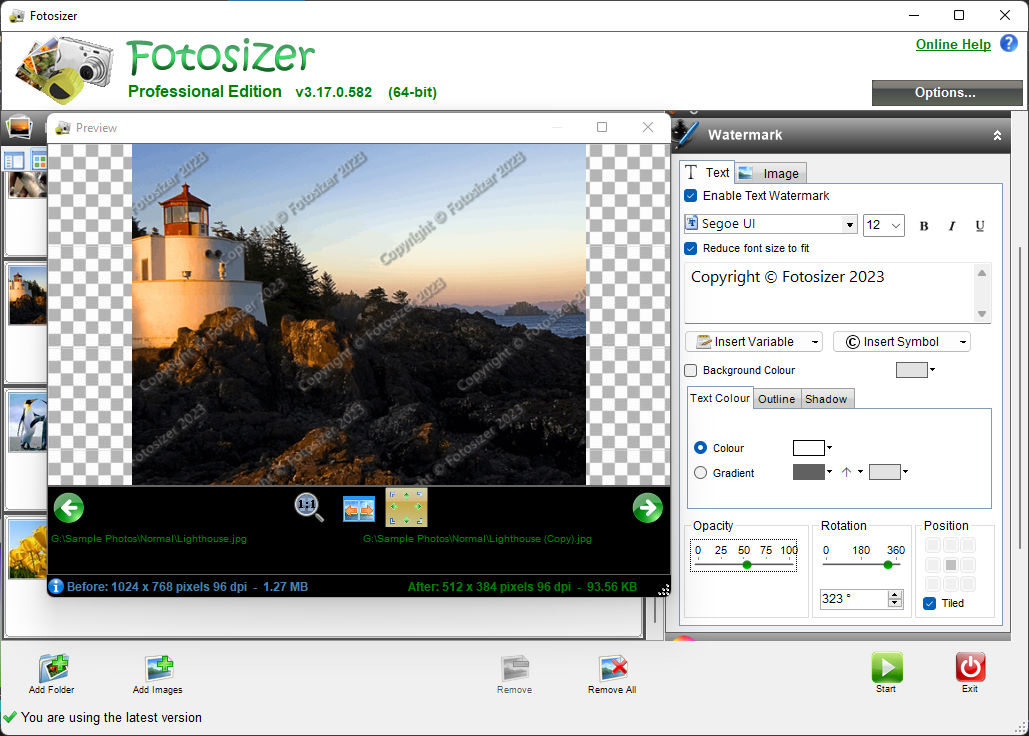
Text Watermarks
Apply text watermarks to your photos. Add parameterized variables such as EXIF metadata, copyright symbols, date taken, choose text colour, outline, shadow, and more.

Rounded Corners
Apply rounded corners to your photos to make them stand out.

Image Watermarks
Apply image watermarks to your photos, choose it's size proportional to the target image or as a fixed size.
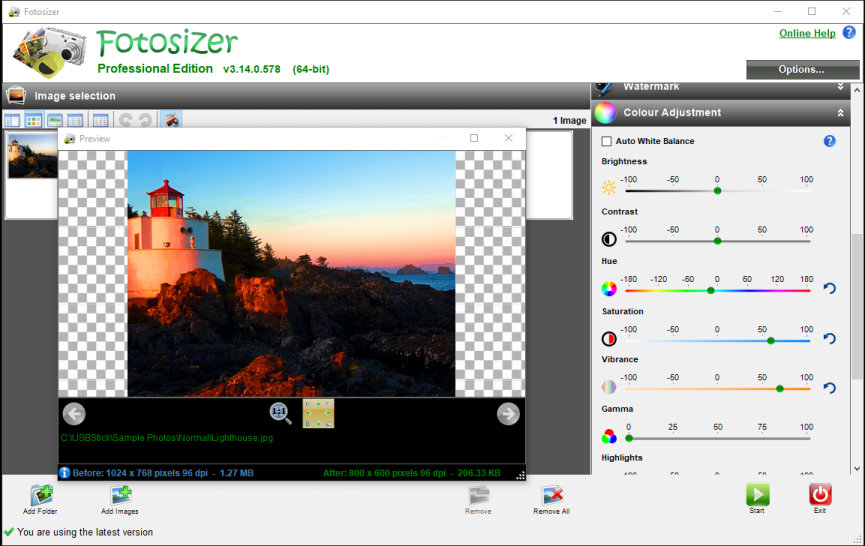
Colour Adjustment
Apply colour adjustments to your photos such as brightness, contrast, hue, saturation and even auto white balance.
